Thursday, May 31, 2012

Make Your Mac Talk Back!

Hey, did you know that you can make your Mac computer talk for you? You can. It will read any digital text that you can highlight, including Word documents, PDFs, and internet text.  Pretty cool feature. We often have student's use it to support their reading. Some students use it to read whole passages, others use it to sound out specific words.  It's a digital voice, so it's not perfect, but they've gotten better with each passing year.


So, to do this trick, first click on the Apple in the top right corner of your screen. Then click on "System Preferences".


Next, on the fourth row down, click on the "Speech" icon.


Click on the "Text to Speech" tab, and then select the "Speak selected text when the key is pressed" box.

Clicking on "Change Key" allows you to choose the Initiator Key the student will use to begin reading. I use the tilda ( ` ) as it's a key that I almost never use.


Now, if you highlight a word, sentence, or paragraph, and then press the key you press your Initiator Key, the computer will read your text.   Pretty slick, huh?

Enjoy, and happy therapy!


Tuesday, May 29, 2012

Skyping Classes

Last year a middle school IEP team approached me with an interesting conundrum.  They were working with a student who was going through some difficulties. Let's call the student Joe.

Joe was dealing with some significant medical issues and had to be homebound for a period of time. He was an accomplished student, and he did not want to miss out on his classes.  Even with home instruction, he was concerned he'd miss out on too much.

That's when the IEP team contacted the AT team.  They asked, "how can we keep Joe involved in our classes"?  The team had been exploring Skype with a few students at two of our high schools. They were working on social skills, with great success.  Now we wondered if we could use Skype in a similar fashion.

We created two gmail accounts, Student 1 and Teacher 1. Then using those accounts we created two Skype accounts by the same names.  Next we assigned two mini-laptops to the project. One was for Joe to use at home, the other went on a cart, and was rolled from class to class by a Teacher-Assistant.

For simplicities sake, the Teacher-Assistant initiated Skype in the morning, and then left it on for the duration of the three classes that Joe needed to participate in.  The Teacher laptop was rolled to the front of the classroom and with the camera on, directed to the teacher and the whiteboard.  Skype allowed Joe to follow along with the lectures and to ask questions of the teacher.

One final addition was made. The teacher was provided with a Bluetooth earbud. This allowed her lecture to be amplified without getting too much ambient noise, and when Joe asked a question, she was able to hear it easily.  In addition, it meant that she was not tied to a microphone cord, and could move about the front of the classroom.

There were the expected technical issues periodically, but overall the experience was a success for Joe, and not too much of a burden for the teaching staff.

What interesting ways have you used Skype or Google Video?


Sunday, May 27, 2012

Remembering my Pepére

When I was a child, every Memorial Day, my mother would light a candle for her father, Marcel Duhamel. Marcel survived the Normandy Invasion. Quite a task for a young man from Manville, Rhode Island. The story I've heard is that a few days after the invasion Marcel was killed by sniper fire.

When my mom passed in 2006 I began lighting a candle in memory of my grandfather. Obviously, I never met the man, but he has had significant impact on my life. Like so many, he was a soldier who gave his life fighting for America. Memorial Day morning I will be lighting a candle first to honor his memory. I will share this story with my sons, as I do every year. I will be thinking of the men and women who have given their lives for our country. I will also be thinking of all the brave men and women who are serving in the forces both at home and afar.

Friday, May 25, 2012

Throwing Your Voice!

So here's a fun site. Voki.com. Voki is designed for education. With Voki users can create one or more avatars.  Mine purposefully kind of looks like me.  Once the user creates his avatar, then he can type text which is spoken, or record his own voice.  When finished the avatar appears to be speaking the words.  Up to one minute of recording is possible.  Voki was designed to "help make your student's homework and class work assignments educational and entertaining".

As an Occupational Therapist, I like to use Voki to motivate a student to write. First we spend time making their avatar.  This is generally a fun task.  Much like when I use Toontastic (refer to App review), I have my students think about what their script will be, and then write it out.  Our focus may be to use proper letter formation, sizing, spacing, orientation, etc.  When they've done a satisfactory job, we record the script.  When we are done we can save the end product, and email it to their teachers or parents.

Voki could be a useful tool for making short Social Stories, or to act out social skills.  In addition, the website offers free lesson plans that can be sorted by subject as well as grade level.  All of this is free to the user. There is a version called Voki Classroom which allows the teacher/therapist to create classroom accounts and manage student accounts.  Voki Classroom is a subscription product, $29.95 for a year, or $44.95 for two years.  Naturally, there are no ads in the Classroom site.


Happy Therapy!

Thursday, May 24, 2012

A Case Study...


Here is a very interesting case.  We have a young woman who was enrolled in our school this year.  Let's call her Poe.  She is from Burma, and speaks very little English, however she does have some functional comprehension skills.  Poe also has some physical issues which result in small stature, (she is approximately 4 feet tall), and because of short digits, she experiences some difficulty with fine motor tasks.  Poe is preparing to graduate high school in a few weeks.


Vocational Rehabilitation (VR) was called in to help place Poe into work, and to provide interventions to allow her success.  Poe's job placement will be with a house and office cleaning agency.  The immediate difficulty anticipated include communication with her supervisor, fellow staff, and even clients.  Based on the recommendations of our wonderful local community-based Assistive Technology Program, Poe will be using an iPad.  She is currently in a trial program using a few specific apps, including Visual Impact Pro, iBurmese, and So Much 2 Say.

A video page from VIP
Visual Impact Pro (VIP) is a nifty app from the makers of Task Builder, one of my favorite pieces of computer software.  VIP will let us create multimedia task instructional sequences, and visual modeling vignettes for the cleaning tasks Poe will be responsible for. Think - Power Point presentation for your iPad, with text and video for each page. The best part, is you can make your video right on the iPad. The hope/expectation is that between the verbal directions, and the visual modeling, Poe will be able to comprehend what is needed of her in each task, despite the language barrier.


translation page
iBurmese is an app that proved to be more fun then any of us expected. Poe quickly begin navigating the app independently and teaching us Burmese (though we were poor students).  iBurmese is the first ever app for iPhone, iPod Touch, and iPad providing common useful Burmese (Myanmar) language phrases, both spoken and in Burmese language script.  The purpose of this app is to provide Poe and her colleagues with a simple way to communicate.  We recognize that it may have some practical limitations, but it should be a decent place to start.

Simple Communication Page
A third special app that we will be trying is called So Much 2 Say (SM2S).  SM2S is a picture communication AAC iPad app that is designed specifically for individuals with cognitive and language impairment. With flexible page layout options ranging from a single card per page to multiple pages of categories, So Much 2 Say is well suited to adapt and grow right along side with the Learner. Intuitive configuration options and fast card creation allow for virtually anyone to quickly update and tune SM2S to best fit the needs of the Learner in multiple settings.  Using the built-in camera Poe will be able to make cards of new objects on the spot.

In addition, we hope to get the VR staff and Poe's work supervisor to setup a Google calendar on the iPad so they can set important dates with the built in reminder features setup.

We have really just begun introducing the iPad and apps to Poe. Until she's had time to use them at work, bump into problems, and solve those problems we won't know how successful this will be.  I hope to post again regarding her adventures when we have more to share.

As usual, your thoughts are welcome!


Tuesday, May 22, 2012

Transferring Pics & Vid To and From Made Easy

Folks often ask how to go about moving photos on or off their iDevices.  One of the more elegant and simple solutions I've discovered is an app and desktop software combination called PhotoSync.  The app itself retails for $1.99. The companion software  for your computer works on both Mac and PCs, and it is free.  

PhotoSync will transfer photos and video to and from your computer, or to web services like Dropbox, Google, and Facebook.  You can also transfer from iOS device to iOS device.

PhotoSync will work with iTouches, iPhones, or iPads. You do need iOS 4.2 or higher, and either MAC 10.5, Windows XP, or newer.

Purchase the app from iTunes. Download the desktop software for free from here.
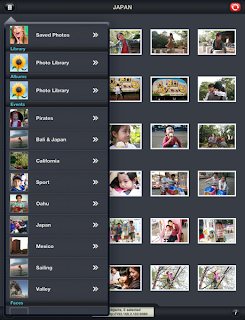


Upon opening the app, if you click on the Drawer icon in the top left corner, you can see all your different folders, including the Camera Roll, Photo Library, and any other folders you've created in your pictures.


Clicking on a photo places a Check mark in the lower left corner of the picture. Than click on the Red Sync button in the top right corner.
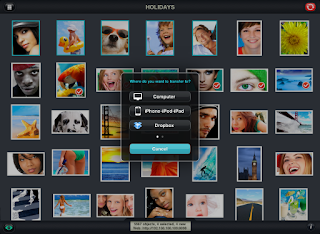


Now your presented with options about what to do with the images you checked

And then your presented with choices about where to transfer the images.
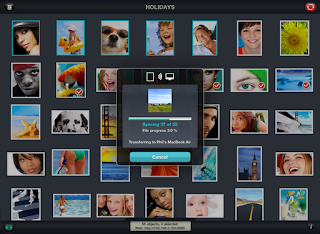


It's that simple.

For users with multiple networks at home or work (our school for example has a Guest, an Apple, and a Windows network) make sure both your iDevice and your computer are operating on the same network, or else they won't "find" each other.  I learned that the hard way!

Now I have PhotoSync on my iPhone, my wife's iPhone, both of our iPads, our laptops, and the home desktop.

Monday, May 21, 2012

NINJA TEACHING: No Limits to Learning: "Guitar Hero" Motivates Middle School Use of Writi...


Here is a great write up by Lon Thornburg from the blog No Limits 2 Learning.  I love it when we take culturally relevant activities for our students and turn them into learning opportunities. Sneaky like a Ninja!

No Limits to Learning: "Guitar Hero" Motivates Middle School Use of Writi...: "How many ways does Guitar Hero help your brain work better?" I asked. I was working with a boy that needed writing support for some slow ...