
Saturday, September 15, 2012

Keyboarding Faster!


Many of our students struggle with the typing process; even if they are a bit too advanced for word prediction programs.  

When possible, training students to use a mainstream word-processor will provide users with greater versatility out in the community. Most libraries offer Microsoft Word, Libre Office, or Open Office. 

One tool that I find very useful in helping students experience success while keyboarding is Auto-Correct. 


With Auto-Correct, you or the student can set-up often typed looooooong words, setting specific initials that will then convert to the full word, or even phrase.

Watch the video above to see how it works. 


Note that the Auto-Correct is offered on all of the big word processors, under the menu "Tools". The process is pretty much identical in all of them.


Happy Therapy!


Friday, September 14, 2012

Getting Homework Assignments to the Home!

Blogger in Action
What if you're a classroom teacher. 


What if you're supposed to have a website for your classroom, you know, for homework, and class notes, and "stuff".

But what if you HATE keeping up your website. Or you just feel too busy!

If you have an iTouch, iPhone, or an iPad with a camera, this could make your life easier! Download Blogger from the app store, which is FREE. The work is setting up a Blogspot.  It will take you 15-30 minutes, and a gmail account, which is also FREE. Than make certain your student's families have the address.
Now, any time there is homework written on the board, or classroom notes, open up the Blogger app. 1. Tap the camera icon in the bottom left corner. Take a picture of your board, and 2. hit "Publish" in the top right corner. Your photo will be published to your blog, with the date, and your students and their families can access it easily!  In addition, you can easily take pictures of class projects.

If any of you try this please let me know. If you try it and run into glitches, let me know that to, and I'll try to help if I can.


This blog got Smithkin Kinders and I discussing what kind of success teachers have had using technology in this way... I didn't have the answer, but it certainly seemed like a great idea.

Good luck, and thanks Smithkin Kinders!

Thursday, September 13, 2012

Read a Book!

Time and again, educators encounter students who struggle with the decoding process of reading. The comprehension is there, they just can't get the words. Historically we've turned to books-on-tape, or more current, books-on-CD. This is a great way to help students hear literature, but it doesn't really support the acquisition of reading skills.

Read2Go
Imagine that you download a book (maybe even a NY Times Bestseller) to your computer or iDevice and the device reads the text aloud to you, while highlighting each word as it reads. This happens using Don Johnston's "Read: Outloud" on your computer (PC or Mac), or if you want portability, you use "Read2Go" for your iDevice.

The folks at Bookshare are determined to bring great e-books paired with read-aloud to people with disabilities.  To date, Bookshare offers 161,310 titles in both fiction and nonfiction works.

Bookshare is a free service if your reader has a qualifying disability. Through the service, Don Johnston's Read: Outloud is also free. Read2Go on you iDevice retails for $19.99. Read2Go on the iPad is bigger obviously, but the iTouch is really portable and discrete, especially with headphones.


Eligibility

WHAT'S A QUALIFYING DISABILITY?

If your student has a disability that makes it difficult or impossible to read a printed book, she most likely will qualify for Bookshare services. To confirm that she qualifies, you, or the organization representing you, will be asked to provide your Proof of Disability (certified by a qualified professional) during the registration process.

The table titled "Eligibility" provides guidelines for determining what qualifies as a print disability. It also lists examples of professionals qualified to make this assessment.

Selection of Stephan King
Information regarding Membership Options can be found here.  If you are a teacher, it may make sense to have one person at your school get a membership and "manage" your readers. It's really pretty simple, and an incredible service.

One last note, the folks at Don Johnston have compiled a body of research that supports the efficacy of pairing reading instruction and technology. Check it out here. Nothing like "evidenced-based teaching"!

Happy reading!

What's to Come?

Is this the future?!?!


This image came from http://imgur.com/iL1MR. That's all. I don't have anything clever to say about it, I was simply amused!

Sunday, September 9, 2012

Saturday, September 8, 2012

Geocaching Made Easy!

At a Cache Site
My youngest son, Ben, and I have become intermittent geo-cachers. It's a great way for he and I to spend some time together, get some exercise, and be outdoors. In addition, both of us are kind'a technology nerds (you may have noticed that about me). Lets just say, the apple didn't fall far from the tree! Geo-caching allows us to merge our love of the outdoors, hiking, and technology.

The good folks at Geocaching.com state that "Geocaching is a free real-world outdoor treasure hunt. Players try to locate hidden containers, called geocaches, using a smartphone or GPS and can then share their experiences online."  More specifically, people go into the woods, suburbs, and cities and hide water-proof containers (ammo boxes, all the way down to little match boxes) with a notebook to sign when and who found it, and sometimes prizes.  The cache location is then uploaded to Geocaching.com with the exact coordinates, and other pertinent details. Than people like Ben and I can access those same coordinates at a later date from the website or specific apps and find those hidden sites. So it's a treasure hunt of sorts with a bit of technology thrown in!

Geocaching App


We use the Geocaching app on my iPhone which is available for $9.99. This may seem like kind of a step price until you get a sense of all the app offers.  According to the developers, this app accesses "exclusive coordinates and detailed information for nearly 2 million hidden geocache containers across the globe".
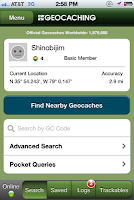


Home Screen


Once you create an account and log into your Geocaching app, the page to the right is what you will be presented with. Note my name, and below that my current coordinates. Finding a nearby cache is as simple as pressing the blue rectangle button in the center "Find Nearby Geocaches".
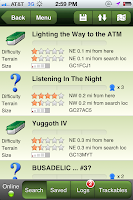


Nearby Caches


The page to the left shows me nearby caches. The top of each listing gives me the name. Below that is a starred likert scale for both the difficulty and the terrain. In addition there is another likert scale for the size of the cache. Finally there is the general direction the cache is from where the user is standing, as well as the distance.


In this instance, we clicked onto "Lighting the Way to the ATM", the top cache on the above image. The image on the right shows the map. The blue dot, flashes, and it represents the person. The green symbol is the cache. This particular cache was in a small business district, and we found the cache while enjoying 5-Guys Burgers.  So, there really was no significant planning.
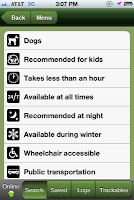


Attributes


One resource you can look at in the app on the called "Attributes". This is a really useful bit of info, telling you what you might consider in going on this hunt. For example, to the left, you can bring your dogs, it is recommended for kids, should take less than an hour, it's available at all times, etc...  Even telling you if it's wheelchair accessible, or near public transportation. Thinking therapy applications now! Let's learn to use the bus system AND go on a treasure hunt!
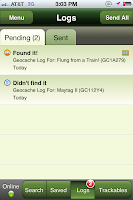


Logs
One other function is the ability to keep logs of your hunt. You can post whether or not you found the cache, take pictures, and send it all to the Geocaching website if you choose. Ben and I have a few caches that we did not find, but we intend to go back!


Once you've purchased the app, using the service is free of charge. This fact, blows me away! So, now you too can geocache, get outdoors, in the wilderness or your town and search for treasures.  Eventually, Ben and I plan to hide a few of our own geocaches.

Happy Hunting!

Friday, September 7, 2012

Drop Box is da' Bomb!

Occupational Therapists! You're itinerant... you are at a school that is not your base school and you need that Eval form. Dang! You left it in your office.

Speech Therapists! You're itinerant... you are at a school that is not your base school and you need those picture cues you use for that artic' lesson you like (apologies SLP's if that's not quite what you do). Dang! You left them in your office.

Parents! You're definitely itinerant!  You are at work and your spouse needs that form you have with you... Dang!

Students! You're using your iTouch to take pictures of your home work. Your parents are soooo demanding, and they want to see it too. Dang!

Drop Box
No worries. OTs, SLPs, Parents, and Students... OT's you keep such necessary documents on your Drop Box account. SLP's you do the same with these commonly used treatment pics.  Parents, you can take a pic of the form with your phone, and push that form up to Drop Box. Students, take a photo from the whiteboard, and upload it to Drop Box. Now your parents can see it, and you can view it at home on the family computer.

Problems solved.

According to the developers; "Dropbox is a free service that lets you bring all your photos, docs, and videos anywhere. This means that any file you save to your Dropbox will automatically save to all your computers, phones, [iPads, iTouches,] and even the Dropbox website", incase your not on one of your devices but still need to access something.

Dropbox delivers! Many of our staff and students across the school district are using it. Personally I have loaded it on my iPad, iPhone, Macbook, and home desktop, my wife's iPhone and laptop, and my two son's iPhones. Yes, we drank the "Apple Koolaide".  But at a moment's notice, I can share a Social Security card with any member of my family.  Or any other document.  Dropbox is password protected, and for 2 GB of space, it's free.

Home Page
So. How to get Dropbox. The easiest way is to use your laptop or desktop first. Go to Dropbox.com. The page on the right, is the page you will get, whether your on a PC, or a Mac.

There is an excellent video right on the first page that will tell all about Dropbox, and the ins and outs of using it. On this same page is the "Download Dropbox" button. It's big and blue. You can't miss it.

Directions


Download Dropbox, install it, and follow the directions.  The directions are so user friendly, I really can't improve on them!


When installing, you will be given three choices of storage. As I stated above, the 2 GB is free. That has been sufficient for my uses. Afterwards, load the software again on all your other computers, and then get the app for your iDevice or Droid phones.  The apps are free as well. You will log into those devices using your same username and password as you do with the laptop/desktop software. 

I'd love to hear how others are using Dropbox in teaching, therapy, or just life.

Happy therapy!